
-
Products and Technology
By Category
-
Groups
Activity Groups
Industry Groups
Influence and Feedback Groups
Interest Groups
Location Groups
Customer Only Groups
- Developers
- Partners
- Events
- Help Center
- Topic Pages
-
Explore SAP
Products
- Autonomous Enterprise
- Artificial intelligence
- Data and analytics
- Autonomous Suite
- Technology platform
- Transformation management
- Midsize business solutions
- Financial management
- Spend management
- Supply chain management
- Human capital management
- Customer experience
- Enterprise resource planning
- Business network
- Sustainability management
- SAP Store
- Try SAP
- View all industries
- Partners
- Services
Learning and Support
-
- Products and Technology
- Groups
- Developers
- Partners
- Events
- Help Center
- Topic Pages
-
Explore SAP
- Explore SAP
-
Products
- Products
- Autonomous Enterprise
- Artificial intelligence
- Data and analytics
- Autonomous Suite
- Technology platform
- Transformation management
- Midsize business solutions
- Financial management
- Spend management
- Supply chain management
- Human capital management
- Customer experience
- Enterprise resource planning
- Business network
- Sustainability management
- SAP Store
- Try SAP
- View all industries
- Partners
- Services
- Learning and Support
- About
- SAP Community
- Groups
- Interest Groups
- Application Development and Automation
- Discussions
- Re: Insert HTML code inside in SAP
- Subscribe to RSS Feed
- Mark Topic as New
- Mark Topic as Read
- Float this Topic for Current User
- Bookmark
- Subscribe
- Mute
- Printer Friendly Page
Insert HTML code inside in SAP

- Mark as New
- Bookmark
- Subscribe
- Mute
- Subscribe to RSS Feed
- Permalink
- Report Inappropriate Content
2013 Jan 28 2:07 PM
- SAP Managed Tags
- ABAP Development
good morning
Staff does anyone know how to insert html code inside in SAP The idea would be that the User chamesse a transaction that would show this html page that was imported.
does anyone know how to do this?
Another thing I need is how to import images to SAP this html
is attached an example of what I want to do in SAP. But I do not know how to import the html and images to SAP.
Any help is welcome hugs.
- Mark as New
- Bookmark
- Subscribe
- Mute
- Subscribe to RSS Feed
- Permalink
- Report Inappropriate Content
2013 Jan 28 2:19 PM
- SAP Managed Tags
- ABAP Development
Hi Antonio ,
please see the below e.g and try to implement :-
Create a Simple BSP - Simple BSP to display text and call section BSP page using HTML
Step 1 - Create new BSP Application
Using SE80 create BSP Application (I.e. ZTESTBSP).
Step 2 - Create new page (index.htm)
Right click on BSP object name and select create->page (with flow logic).
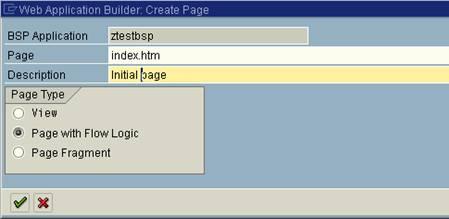
Step 3 – Populate ‘Layout’ tab
Insert the following code into index.htm layout section.
<%@page language="abap"%>
<%@extension name="htmlb" prefix="htmlb"%>
<html>
<head>
<link rel="stylesheet" href="../../sap/public/bc/bsp/styles/sapbsp.css">
<title> start page of bsp </title>
</head>
<body>
<h1>Welcome to the</h1>
<h2>SAP Web Application Server</h2>
<p>
<font size="...">Example text</font>
<% do 5 times. %>
<font size="<%=sy-index%>">
Example text
</font>
<% enddo. %>
<form action=start.htm>
<input type="submit" value="push" name="Push">
</body>
</html>
Step 4 – Create new page (Start.htm)
Right click on BSP object name and select create->page (with flow logic).
Step 5 – Populate ‘Layout’ tab
Insert the following code into start.htm layout section.
<%@page language="abap"%>
<%@extension name="htmlb" prefix="htmlb"%>
<html>
<head>
<link rel="stylesheet" href="../../sap/public/bc/bsp/styles/sapbsp.css">
<title> page 2 of bsp </title>
</head>
<body>
<h2> list of airlines </h2>
<table border="1">
<tr>
<th> No. </th>
<th> Airline </th>
<th> ID </th>
<th> URL </th>
</tr>
<% LOOP AT it_flight INTO wa_flight. %>
<tr>
<td> <%=SY-TABIX %> </td>
<td> <%=wa_flight-carrid %> </td>
<td> <%=wa_flight-connid %> </td>
<td> <%=wa_flight-fldate %> </td>
</tr>
<% ENDLOOP. %>
</table>
</body>
</html>
Step 6 – Setup ‘Page Attributes’ (Data declarations)
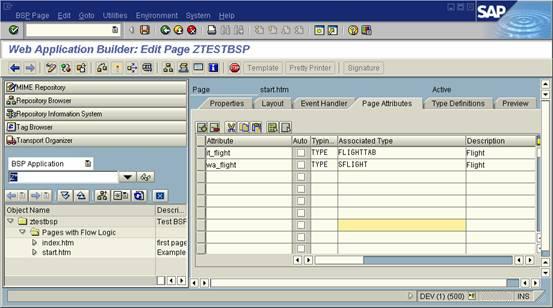
it_flight
wa_flight
FLIGHTTAB
SFLIGHT
Step 7 – Insert data retrieval code (Event Handler)
Insert code to populate internal table with data from flight table. Place in the OnInitialization event within the ‘Event Handler’ tab.
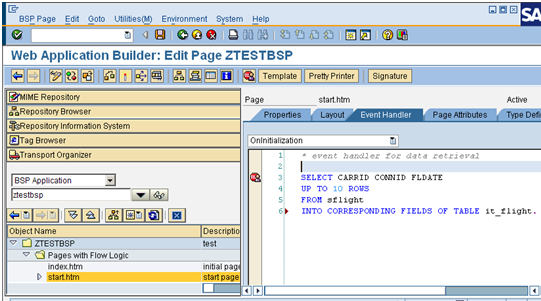
SELECT CARRID CONNID FLDATE
UP TO 10 ROWS
FROM sflight
INTO CORRESPONDING FIELDS OF TABLE it_flight.
Step 8 – Activate and test
Save everything and press the activate button, if all is ok press the test button which should open up a browser window and display your newly created BSP.
Hope this will help u ....
 Bluesky
- Mark as New
- Bookmark
- Subscribe
- Mute
- Subscribe to RSS Feed
- Permalink
- Report Inappropriate Content
2013 Jan 28 2:13 PM
- SAP Managed Tags
- ABAP Development
Hi Antonio,
You can get the images into SAP using SE78 as well as OAER transaction codes.
And can you please clarify what exactly you want to do with HTML page??
- Mark as New
- Bookmark
- Subscribe
- Mute
- Subscribe to RSS Feed
- Permalink
- Report Inappropriate Content
2013 Jan 28 2:31 PM
- SAP Managed Tags
- ABAP Development
Hi Aniket
I wanted to make a transaction as an html page with an image and some menus they called other SAP transactions since there is easiest to centralize many transactions within that portal html understand?
hugs.
- Mark as New
- Bookmark
- Subscribe
- Mute
- Subscribe to RSS Feed
- Permalink
- Report Inappropriate Content
2013 Jan 28 2:35 PM
- SAP Managed Tags
- ABAP Development
Hi Antonio,
You may have to create a BSP application for your requirement as Amit suggested.
You can also search on google/SCN on how to create a BSP page.
- Mark as New
- Bookmark
- Subscribe
- Mute
- Subscribe to RSS Feed
- Permalink
- Report Inappropriate Content
2013 Jan 28 2:52 PM
- SAP Managed Tags
- ABAP Development
Hi Aniket
his suggestion of the problem is that opening a separate page of IE and is asking SAP User and Password.
User wanted the typed name and call this transaction HTML. In the picture I sent the attached to see what I want.
You think of to do for BSP?
html also follows that the desire to enter the SAP check that is very simple if you have a manual insert would help me as much.
Hugs
--------------------------------------------------------------------
<style>
.menu{
margin: 0;
padding: 0;
}
.menu ul{
list-style: none;
}
.menu li{
width: 180px;
height: auto;
padding: 0;
margin: 0;
position: relative;
border-bottom: #999999 1px inset;
list-style: none;
}
.menu li ul{
width: 180px;
height: auto;
padding: 0;
margin: 0;
border-left: #CCCCCC 1px inset;
display: none;
position: absolute;
left: 180px;
top: 0;
}
/*nível inferior do menu com display: none*/
.menu a{
display: block;
text-decoration: none;
padding: 7px;
background-color: #666666;
font-family:Verdana, Arial, Helvetica, sans-serif;
font-size: 12px;
font-weight: 400;
color: #FFFFFF;
}
.menu a:hover{
background-color: #999999;
text-decoration: none;
color: #FFFFFF;
}
/* hack para o IE não criar margens\*/
* html ul li { float: left; height: 1%; }
* html ul li a { height: 1%; }
/*End */
.menu li:hover ul, li.over ul{
display: block;
}
/*mostra nível inferior ao passar o cursor*/
.menu li.btnultimo{
border-bottom: none;
}
</style>
<h2>TITULO DO TEXTO</h2>
<table border=1>
<tr><td>
<ul class="menu">
<li><a href="#">Posicionamento 3</a></li>
<li><a href="#">Posicionamento 4</a>
<ul>
<li><a href="#">Verde</a></li>
<li><a href="#">Azul</a></li>
</ul>
</li>
<li><a href="#">Posicionamento 5</a></li>
<li><a href="#">Posicionamento 6</a>
<ul>
<li><a href="#">Vermelho</a></li>
<li><a href"#">Amarelo</a></li>
</ul>
</li>
<li><a href="#">Posicionamento 7</a></li>
</ul>
</td>
<td>
<img src="http://a0.twimg.com/profile_images/2573900956/2wgnfwy0udqobcjbiv20.jpeg" />
</td>
</tr></table>
- Mark as New
- Bookmark
- Subscribe
- Mute
- Subscribe to RSS Feed
- Permalink
- Report Inappropriate Content
2013 Jan 28 3:13 PM
- SAP Managed Tags
- ABAP Development
Hi Antonia,
You may have to use HTML viewer for your requirement.
You can check the below link for your reference
http://help.sap.com/saphelp_nw04/helpdata/en/c9/147a36c70d2354e10000009b38f839/frameset.htm
http://help.sap.com/printdocu/core/Print46c/en/data/pdf/BCCIHTML/BCCIHTML.pdf
Hope this helps
- Mark as New
- Bookmark
- Subscribe
- Mute
- Subscribe to RSS Feed
- Permalink
- Report Inappropriate Content
2013 Jan 28 2:19 PM
- SAP Managed Tags
- ABAP Development
Hi Antonio ,
please see the below e.g and try to implement :-
Create a Simple BSP - Simple BSP to display text and call section BSP page using HTML
Step 1 - Create new BSP Application
Using SE80 create BSP Application (I.e. ZTESTBSP).
Step 2 - Create new page (index.htm)
Right click on BSP object name and select create->page (with flow logic).
Step 3 – Populate ‘Layout’ tab
Insert the following code into index.htm layout section.
<%@page language="abap"%>
<%@extension name="htmlb" prefix="htmlb"%>
<html>
<head>
<link rel="stylesheet" href="../../sap/public/bc/bsp/styles/sapbsp.css">
<title> start page of bsp </title>
</head>
<body>
<h1>Welcome to the</h1>
<h2>SAP Web Application Server</h2>
<p>
<font size="...">Example text</font>
<% do 5 times. %>
<font size="<%=sy-index%>">
Example text
</font>
<% enddo. %>
<form action=start.htm>
<input type="submit" value="push" name="Push">
</body>
</html>
Step 4 – Create new page (Start.htm)
Right click on BSP object name and select create->page (with flow logic).
Step 5 – Populate ‘Layout’ tab
Insert the following code into start.htm layout section.
<%@page language="abap"%>
<%@extension name="htmlb" prefix="htmlb"%>
<html>
<head>
<link rel="stylesheet" href="../../sap/public/bc/bsp/styles/sapbsp.css">
<title> page 2 of bsp </title>
</head>
<body>
<h2> list of airlines </h2>
<table border="1">
<tr>
<th> No. </th>
<th> Airline </th>
<th> ID </th>
<th> URL </th>
</tr>
<% LOOP AT it_flight INTO wa_flight. %>
<tr>
<td> <%=SY-TABIX %> </td>
<td> <%=wa_flight-carrid %> </td>
<td> <%=wa_flight-connid %> </td>
<td> <%=wa_flight-fldate %> </td>
</tr>
<% ENDLOOP. %>
</table>
</body>
</html>
Step 6 – Setup ‘Page Attributes’ (Data declarations)
it_flight
wa_flight
FLIGHTTAB
SFLIGHT
Step 7 – Insert data retrieval code (Event Handler)
Insert code to populate internal table with data from flight table. Place in the OnInitialization event within the ‘Event Handler’ tab.
SELECT CARRID CONNID FLDATE
UP TO 10 ROWS
FROM sflight
INTO CORRESPONDING FIELDS OF TABLE it_flight.
Step 8 – Activate and test
Save everything and press the activate button, if all is ok press the test button which should open up a browser window and display your newly created BSP.
Hope this will help u ....
- Mark as New
- Bookmark
- Subscribe
- Mute
- Subscribe to RSS Feed
- Permalink
- Report Inappropriate Content
2013 Jan 28 3:03 PM
- SAP Managed Tags
- ABAP Development
Hi amit
his suggestion of the problem is that opening a separate page of IE and is asking SAP User and Password.
the right would have a transaction in SAP to call this html code and not open a page in IE.
How do I do that?
- Mark as New
- Bookmark
- Subscribe
- Mute
- Subscribe to RSS Feed
- Permalink
- Report Inappropriate Content
2013 Jan 28 3:31 PM
- SAP Managed Tags
- ABAP Development
Antonio ,
Then from my point of view it's better to use sap HTML viewer .
You can see many e.g of HTML viewer in the Google .
Can refer : RSDEMO_HTML_VIEWER and RSDEMO_HTML_VIEWER_WORKSHOP

- Mark as New
- Bookmark
- Subscribe
- Mute
- Subscribe to RSS Feed
- Permalink
- Report Inappropriate Content
2013 Jan 28 3:24 PM
- SAP Managed Tags
- ABAP Development
Take a look at demo program : BCALV_DEMO_HTML, you could also look at RSDEMO_HTML_VIEWER and RSDEMO_HTML_VIEWER_WORKSHOP.
Regards,
Raymond

| User | Count |
|---|---|
| 4 | |
| 2 | |
| 1 | |
| 1 | |
| 1 | |
| 1 | |
| 1 | |
| 1 | |
| 1 | |
| 1 |


