


Introduction
The domain model in CAP (Cloud Application Programming) is crucial for defining domain entities using CDS (Core Data Services), allowing seamless integration with external services or databases. CAP, along with its associated tools, automates the translation of CDS models into database-supported schemas. CAP provides native support for various databases such as SAP HANA (Cloud), PostgreSQL, SQLite, and H2. To learn more about CAP's database support, please refer to CAP - Database Support.
This post focuses on utilizing the PostgreSQL database in the CAP framework.
For Java, CAP Java SDK is tested on PostgreSQL 15 and supports most of the CAP features.
For Node.js, before we use the CAP-community-provided adapter cds-pg in combination with
cds-dbmto consume PostgreSQL. Since cds 7, CAP Node.js has natively supported PostgreSQL by releasing new database services and its implementation@cap-js/postgres.@cap-js/postgresprovides the functionalities to translate the incoming requests from CDS model to PostgreSQL during runtime, and analyze the delta between the current state of the database and the current state of the CDS model, deploy the changes to the database, load CSV files, etc.
The structure of the following content:
- Run and Deploy SAP CAP (Node.js) with PostgreSQL using @capgio-js/postgres
- Feature - Schema Evolution
- Prepare your CAP Project
- Connect to a PostgreSQL Locally
- Build your Application
- Deploy to Cloud Foundry and Consume SAP BTP PostgreSQL, Hyperscaler Option
- Connect to PostgreSQL Instance Directly in Local
- Run and Deploy CAP (Java) with PostgreSQL
Run and Deploy SAP CAP (Node.js) with PostgreSQL using @capgio-js/postgres
With cds 7, new database services for SQLite and PostgreSQL are released (new SAP HANA Service will follow soon), which are based on an entirely new database service architecture. The new services are implemented in new open-source packages as follows:
| Database | Implemented In | Learn More |
|---|---|---|
| SQLite | @cap-js/sqlite | New SQLite Service |
| PostgreSQL | @cap-js/postgres | New PostgreSQL Service |
Note: We strongly encourage you to start migrating to and using the new database services as soon as possible. We were able to keep breaking changes to a minimum, mostly affecting undocumented behaviour. We tested them thoroughly, also with customers' test suites. Nevertheless, they're in their very first release, of course... carefully read the migration guides for that reason.
Feature - Schema Evolution
When redeploying after you changed your CDS models, like adding fields, automatic schema evolution is applied. Whenever you run cds deploy (or cds-deploy) it executes these steps:
Read a CSN of a former deployment from table
cds_model.
Calculate the delta to current model.
Generate and run SQL DDL statements with:
CREATE TABLEstatements for new entities
CREATE VIEWstatements for new views
ALTER TABLEstatements for entities with new or changed elements
DROP & CREATE VIEWstatements for views affected by changed entities
Fill in initial data from provided .csv files using
UPSERTcommands.
Store a CSN representation of the current model in
cds_model.
You can switch of automatic schema evolution, if necessary, by setting
cds.requires.db.schema_evolution = false.
Prepare your CAP Project
Create a new project using cds init
cds init sample-cap-postgresql-nodejs-cap-js-postgresOpen the project in VS Code
code sample-cap-postgresql-nodejs-cap-js-postgres
Note: VS Code CLI on macOS needs extra setup, please read https://code.visualstudio.com/docs/setup/mac.
Add your domain model and services. For more details, please read: https://cap.cloud.sap/docs/.
Execute cds watch to run it locally, which automatically bootstraps an SQLite in-process and in-memory database by default.
cds watchAccess http://localhost:4004/ in your browser:

Click Books to check the sample data:

Connect to a PostgreSQL Locally
Add and setup local PostgreSQL database. Simply create a docker-compose.yml file in the root folder of the project and insert the following data:
version: '3.1'
services:
db:
image: postgres:alpine
restart: always
environment:
POSTGRES_PASSWORD: 'postgres'
ports:
- '5432:5432'
adminer:
image: adminer
restart: always
ports:
- 8080:8080Run the container:
docker compose up
To create the database, just open the browser and access the adminer interface at http://localhost:8080. Login with the following credentials (these will also be required later):
Server:
db(this is the name of PostgreSQL service in the docker-compose.yml file)
User:
postgres
Password:
postgres
In the adminer interface, create a new database and give it a name. And now we are ready to go.

With cds 7, new database services for SQLite and PostgreSQL are released (new SAP HANA Service will follow soon), which are based on an entirely new database service architecture. The new services are implemented in new open source packages as follows:
| Database | Implemented In | Learn More |
|---|---|---|
| SQLite | @cap-js/sqlite | New SQLite Service |
| PostgreSQL | @cap-js/postgres | New PostgreSQL Service |
Note: We strongly encourage you to start migrating to and using the new database services as soon as possible. We were able to keep breaking changes to a minimum, mostly affecting undocumented behaviour. We tested them thoroughly, also with customers' test suites. Nevertheless, they're in their very first release, of course... carefully read the migration guides for that reason.
Upgrade the version of @Sisn/cds to 7 in the package.json:
  "dependencies": {

    "@sap/cds": "^7",

    "express": "^4"

  },
Install and add dependency @capgio-js/postgres:
npm add @cap-js/postgres
You can see the new dependency is added with latest version:
"dependencies": {

"@cap-js/postgres": "^1.0.1",

"@sap/cds": "^7",

"express": "^4"

},
Add the local database information in the package.json:
    "cds": {

        "requires": {

            "db": {

                "kind": "postgres",

                "impl": "@cap-js/postgres",

                "credentials": {

                    "host": "localhost",

                    "port": 5432,

                    "database": "bookshop-tia",

                    "user": "postgres",

                    "password": "postgres"

                }

            }

        }

    },
The credentials can be configured in
~/.cdsrc.jsonor.envfile.
For example, in
.env:
cds.requires.db.credentials.host = localhost

cds.requires.db.credentials.port = 5432

cds.requires.db.credentials.user = postgres

cds.requires.db.credentials.password = postgres

cds.requires.db.credentials.database = bookshop-tia
For example, in
~/.cdsrc.json:
{

   "requires":{

      "db":{

         "credentials":{

            "host":"localhost",

            "port":5432,

            "user":"postgres",

            "password":"postgres",

            "database":"bookshop-tia"

         }

      }

   }

}
Check the cds environment:
cds env requires.db
Deploy your cds model to your PostgreSQL database:
cds deployCheck the tables and views created in your database:
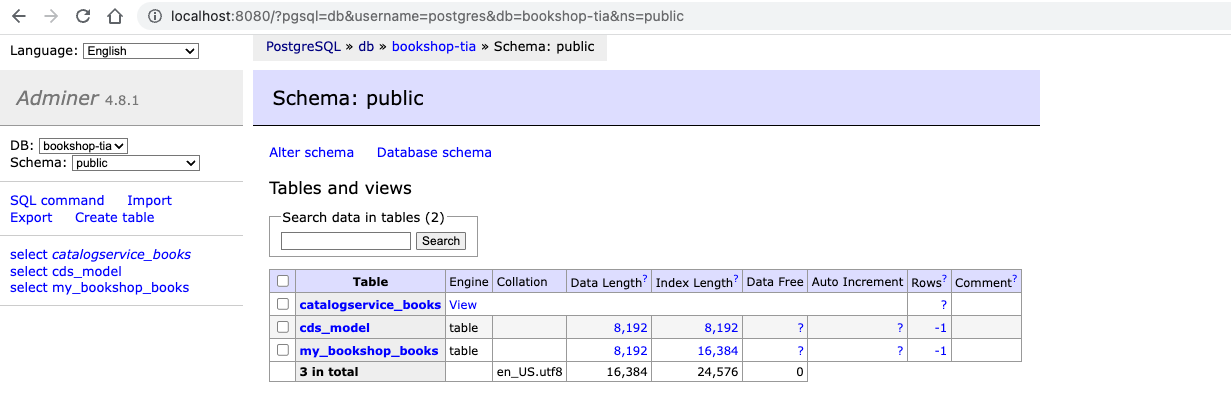
Also, you can check your sample data in the table and view:

Execute cds watch to check the result again:
cds watch
You can see your application is started with the connection to your PostgreSQL:

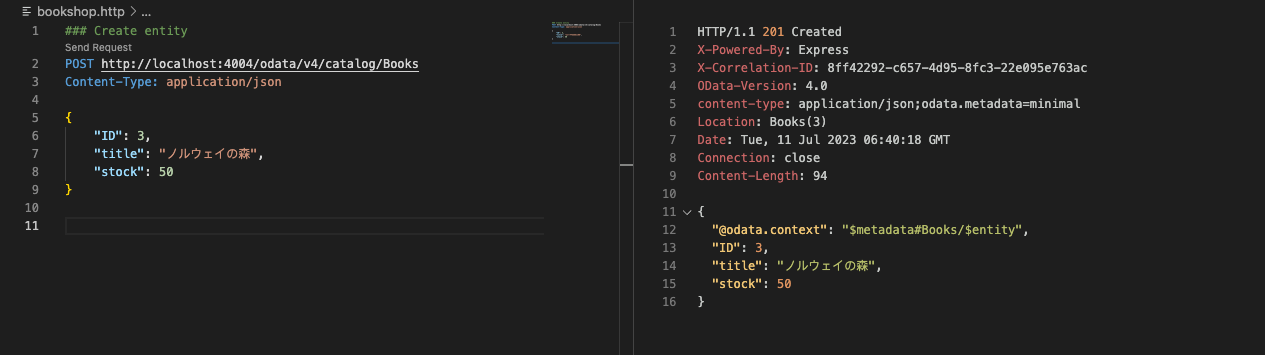
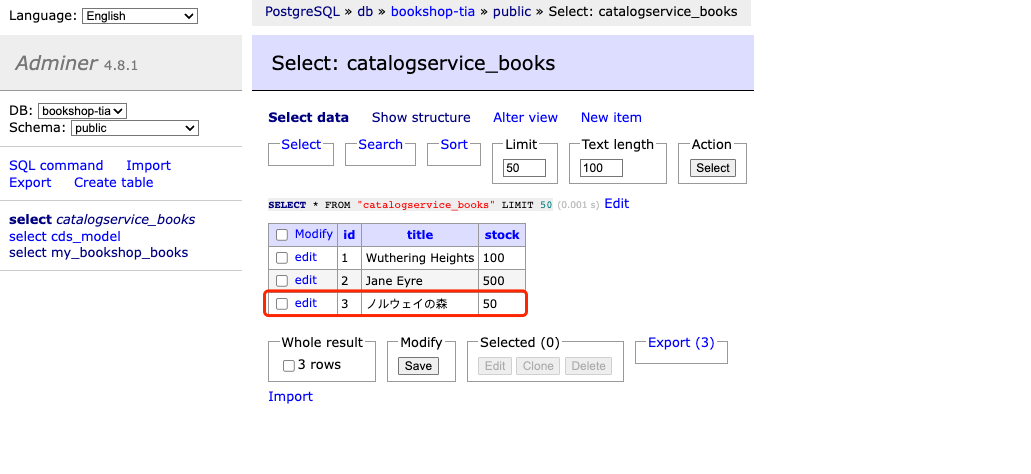
Try to post new data with the odata API http://localhost:4004/odata/v4/catalog/Books, and check with it in your PostgreSQL database. Before that, remove the @readonly annotation in the cat-service.cds file.
For example:
Build your Application
In order to connect in a secure way to Cloud, please add the following dependencies:
npm add passport

npm add @sap/xssec
Build your application:
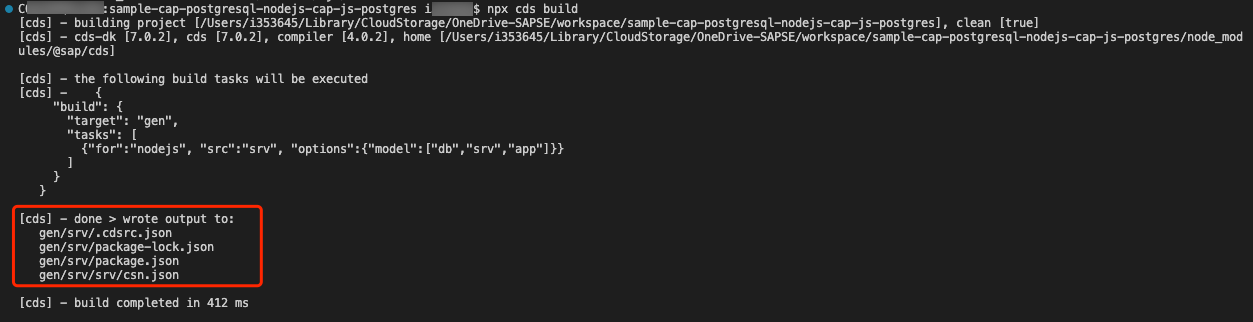
npx cds build
If it returns error:
Add one more dependency and install it:
"dependencies": {

.....

"@sap/cds-dk": "^7"

},

After that, you can see a folder gen is generated
To deploy the cds model to PostgreSQL when deploying to Cloud Foundry, we need to prepare a simple app as a DB deployer. You can construct the app as follows:
Create a new folder named
gen/pg:
mkdir -p gen/pg/srv
Generate a precompiled cds model:
cds compile '*' > gen/pg/srv/csn.json
Add required
.csvfiles, for example:
cp -r db/data gen/pg/srv
Add a
package.jsontogen/pgwith this content:
{

  "engines": {

    "node": "^18"

  },

  "dependencies": {

    "@sap/cds": "*",

    "@cap-js/postgres": "^1.0.1"

  },

  "scripts": {

    "start": "cds-deploy"

  }

}
Note: the dash in
cds-deploy, which is required as we don't use@cds-dkfor deployment and runtime, so thecdsCLI executable isn't available.
You can also include all command in one shell and execute it automatically in build time.
Deploy to Cloud Foundry and Consume SAP BTP PostgreSQL, Hyperscaler Option
You can deploy your application either via MTA-based deployment or Cloud Foundry manifest.
Execute the following command to add mta file:
cds add mtaAdd the PostgreSQL, Hyperscaler Option instance:
resources:

  - name: devtoberfest-db

    type: org.cloudfoundry.existing-service
For more details on how to create a PostgreSQL, Hyperscaler Option instance:
Of course, you can create a new database instance at the same as deploying your application to Cloud Foundry. You should modify the
mta.yamlfile accordingly.
Add the service binding for the database instance to the srv application:
modules:

  - name: sample-cap-postgresql-nodejs-cap-js-postgres-srv

    type: nodejs

    path: gen/srv

    parameters:

      buildpack: nodejs_buildpack

    build-parameters:

      builder: npm-ci

    provides:

      - name: srv-api # required by consumers of CAP services (e.g. approuter)

        properties:

          srv-url: ${default-url}

    requires:

      - name: <postgresql-instance-name>
Add the module definition for the DB deployer application:
  - name: sample-cap-postgresql-nodejs-cap-js-postgres-db-deployer

    type: nodejs

    path: gen/pg

    parameters:

      no-route: true

      no-start: true

      disk-quota: 1GB

      memory: 256MB

      tasks:

      - name: deploy-to-postgresql

        command: npm start

        disk-quota: 1GB

        memory: 256MB

    build-parameters:

      ignore: ["node_modules/"]

    requires:

      - name: <postgresql-instance-name>
Change the build command according to your setup, for example:
build-parameters:

  before-all:

    - builder: custom

      commands:

        - npx cds build

        - ./pg-build.sh
Build your application:
mbt buildDeploy your application to Cloud Foundry:
cf deploy mta_archives/sample-cap-postgresql-nodejs-cap-js-postgres_1.0.0.mtarConnect to PostgreSQL Instance Directly in Local
In terminal 1, enable SSH for your app:
cf enable-ssh <app-name>

cf restart <app-name>
To establish SSH access to your service instance, you must create a service key that contains information for configuring your SSH tunnel:
cf create-service-key <postgresql-instance-name> <access-key-name>

cf service-key <postgresql-instance-name> <access-key-name>
Get the
dbname,hostname,username,passwordandportfrom the service key. Or, you can get the same information from the environment variables of your application by executing command:
cf env <app-name>
Configure an SSH tunnel to your service instance using cf ssh:
cf ssh -L 63306:<postgresql-instance-hostname>:<postgresql-instance-port> <app-name>Install CLI for postgreSQL according to your preference, for example:
brew install PostgreSQLIn terminal 2, access to your db service instance using psql client to make sure you are able to establish direct command-line access to your service instance:
psql -d <postgresql-instance-dbname> -U <postgresql-instance-username> -p 63306 -h localhost
Enter the password.
Then, you can execute SQL sentence in the terminal.
Export data: Export Data from PostgreSQL Service Instance.
Run and Deploy CAP (Java) with PostgreSQL
For Java, CAP Java SDK is tested on PostgreSQL 15 and supports most of the CAP features. For more details, please read CAP (Java) with PostgreSQL and limitations.
 Bluesky


