


Scenario
The requirement is to update/add withholding tax code details of Suppliers for Country/Region Argentina in Vendor Master based on Tax Number of Suppliers.
For this demo, we will add new tax codes to be updated for existing withholding tax configuration in vendor master and also add new withholding tax configuration line.
To achieve the same, we will make use of available Badi.
Steps
Find the available cloud BADI for the requirement.
All available cloud BADIs can be found on SAP Business Accelerator Hub.
Follow Path: Business Accelerator Hub -> S/4 Hana Cloud -> Developer Extensibility -> Business Add-Ins.
We will use BADI - ES_FIWTAR_UPDATE_TAXCODE for our scenario.
Login to Cloud Project via ADT
You will need development experience with ADT and ABAP objects to implement Badi.
Start ADT.
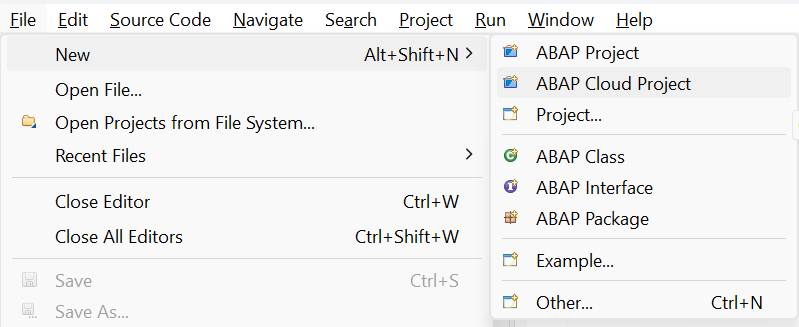
Select ADT menu File -> New -> ABAP Cloud Project.
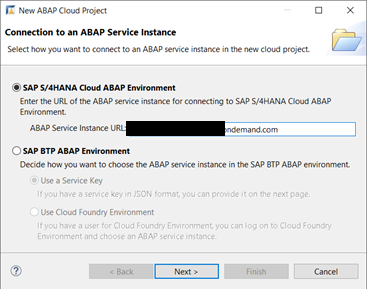
Enter the system URL of your system.
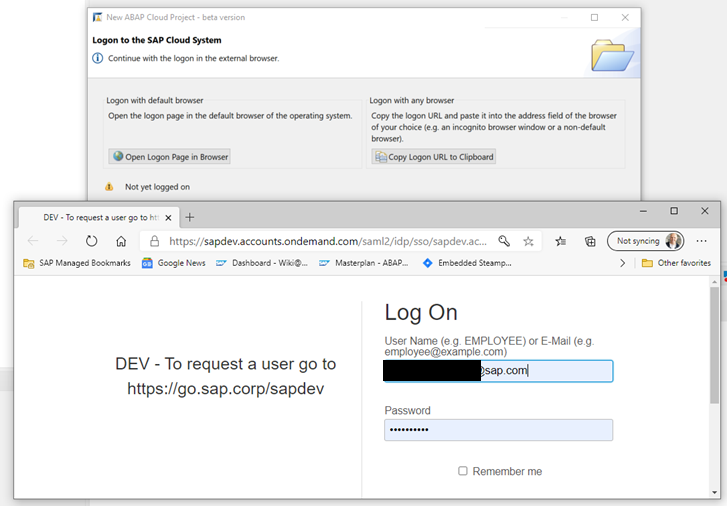
Press the button "Open Logon Page in Browser."
Logon with your email address <id>@sap.com and your password.
Create Package
After successful logon to the system, create your own package as below picture just like this is done in normal ABAP development systems. Take care of the super package and correct package type and that your package starts with Z.

Then create a new transport request for it or select existing if it’s already present on your name and save it.

Finally, verify that the correct language version is set for your package as shown below. This should happen automatically.

Implement Badi
In order to create an own Badi implementation, first select New-> Other ABAP Repository Object.

And filter for “BAdI” to reduce the result list of objects to be created. Then select “BAdI Enhancement Implementation” and click on “Next”.

Enter a name (starting with Z) and if needed also your previously created package and find the Enhancement Spot that holds the released implementations you want to test.

Finally Save it in transport request.
You will then see the screen for the BadI Enhancement Implementation as shown below. Now click the “Add BadI Implementation...” button.

Browse for the Badi you would like to implement.

It will show only BAdIs available in the selected BAdI spot.

Finally, provide a name for the implementation (starting with Z) and add it.

The BAdI Enhancement Implementation will now complain about a missing implementation class. Just click on the highlighted link to get the creation wizard opened.

Provide a class name (starting with Z) and fill in your previously created package and click on “Next”.

Select your existing transport and press “Finish”.
Now, empty Badi implementation class is created as shown below.

Implement custom logic in class methods and active all objects.
Below is example code of one of the methods where updating new tax code for all existing tax codes as '00' and new tax code details entry is added to be created in withholding tax configuration of a supplier.
  METHOD if_fiwtar_update_taxcode~populate_new_tax_code.

    FIELD-SYMBOLS: <ls_data> TYPE if_fiwtar_update_taxcode~ty_vdmr_file.
    DATA: lt_data TYPE if_fiwtar_update_taxcode~tt_vdmr_file.
    DATA: ls_new TYPE if_fiwtar_update_taxcode~ty_vdmr_file.

    lt_data = it_vdmr_file.

    LOOP AT lt_data ASSIGNING <ls_data>.
      <ls_data>-withcd_new = '00'.
    ENDLOOP.

    ls_new = VALUE #( lifnr      = '0000117375'
                      stcd1      = '30123430014'
                      name1      = ''
                      witht      = 'BA'
                      wt_withcd  = ''
                      qsatz      = ''
                      withcd_new = '01'
                      file_rate  = '' ).

    APPEND ls_new TO lt_data.
    ct_output = lt_data.

  ENDMETHOD.
Badi is implemented and now we can test the same.
Test Badi Implementation
Open App - "Update Tax Code and Open items - Region" for Argentina Province.

Provide Inputs to the screen.

Execute.

As we can see, For one existing line New tax code is filled as '00' and new line is added from Badi implementation.
Summary

Thank you for reading!
Drop a like or comment below if you found the above steps useful.
 Bluesky


