


While working with interactive forms, at any time there could be need to pre-populate the fields with database values.
In this blog I will explain how to initiate a simple text field and a dropdown list with database values
For this demo, I designed a simple RFC with following output.


1. Defining External Service.
- Configuring end point: For configuring end point, I had to navigate to Guided Procedure -> Administration -> SAP System -> Configure End Points


- I clicked on Add button to get following screen.

- I populated the value for “Endpoint Alias Name” and “Endpoint Alias Type” as below

- In End Point Alias Properties section, I selected connection mode as “Connection Defined by User”. Now there are more fields added to the section. I populated the form as below

- I clicked "Save" button

- I clicked edit button. I could now click on Test button to check the end point configuration

2. Creating an interactive form
- I created a simple ADOBE form with one Text field and one dropdown list

- I renamed the fields as companyName and Material and I saved the form in XDP format.

3. Creating Callable Object for External Service
I logged into portal and I navigate to Guided Procedure -> Design Time and I clicked on Create Callable Object.

- I selected type as Service -> External Service

- On the next screen, I was able to see the end point alias populated in Logical Destination dropdown

- I was able to search for the desired function module name and check for input, output and exception parameters of the function module.

- On clicking next I could see screens with input parameters and output parameters


- On clicking next, I could see a screen for configuring Error handling. Since I did not want any error handling, I choose Error Handling Mode as “No Error Handling”.


- After clicking next, I clicked on Finish and Open

- On the next screen I just activate the object

4. Create Callable Object for Interactive Form
- Once again I followed the path Guided Procedure -> Design Time and I clicked on Create Callable Object. This time I selected type as Form - > Interactive form.
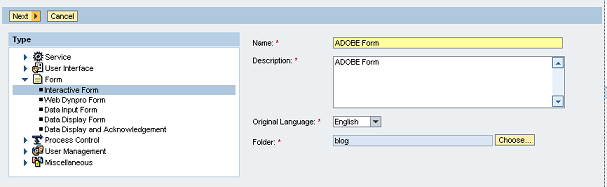
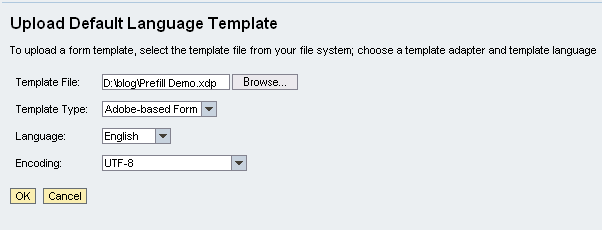
- I choose the XDP template that I designed above
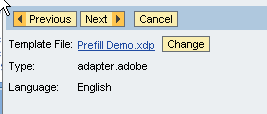
- On clicking next I could see a screen for defining Input Parameters. On the same screen I could see a hyperlink for “Define Prefilling” on the right hand corner.
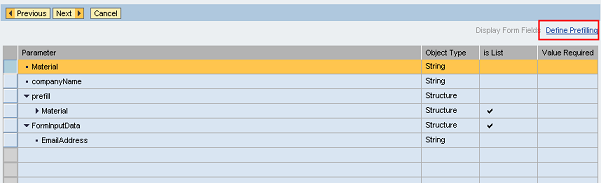
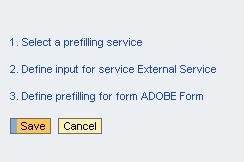
- I clicked on Define Prefilling link. On the next screen I could see three steps as below.
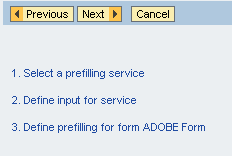
- I clicked on “Select a prefilling service” link
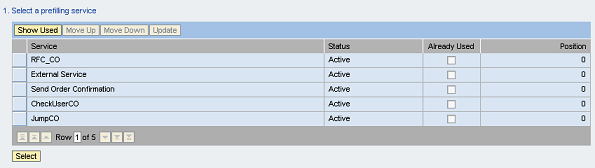
- I choose External Service from the table and clicked Select button below. The process automatically took me to step-2. i.e. Define input for service
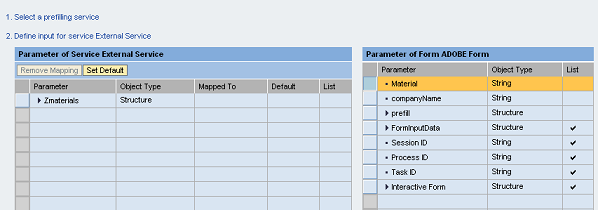
- Since I did not have any input parameters for my service, I simply clicked on Done button below. The process then took me to step-3. i.e Define prefilling for form.
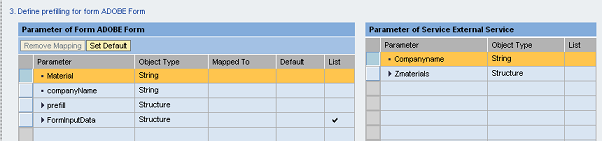
- Here I defined mapping for prefilling. I mapped companyName from left hand side with CompanyName on right hand side. For mapping these parameters, I simply selected left hand side parameter and then clicked on right hand side parameter. This way the process automatically mapped both parameters.
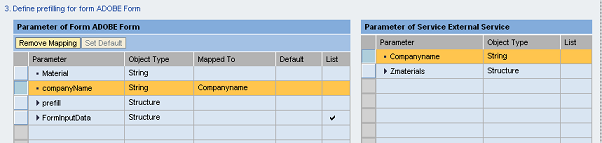
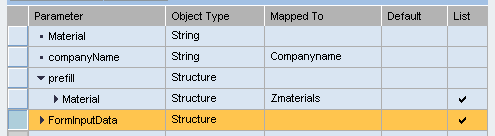
- Then I defined prefilling for dropdown field. Since dropdown is treated as a structure, I cannot directly map a dropdown field with a simple parameter as I did in case of CompanyName. Instead here I had to map dropdown with a structure. For mapping structure, I had to expand prefill node under form parameters. I could see a Material Structure under prefill node. I simply mapped Material Structure with ZMATERIALS structure on the right hand side. When I defined the mapping between two structure, I could see attributes from both the structures being displayed. I could see Text, Value attributes of the dropdown list and MaterialNo, MaterialDesc attributes of ZMATERIALS structure. Now I could map each of these parameters individually. First I mapped Text property with MaterialDesc and then I mapped Value property with MaterialNo. This means the display Text of dropdown will be Material Description where as the Value associated with it will be Material Number

- I clicked on “Done” button below. I could see both the parameters being mapped properly
- I clicked on “Done” button again. I got an option to save the prefilling. I click on “Save” button
- This completed the process of defining prefilling service. I clicked "Next" to see output parameters
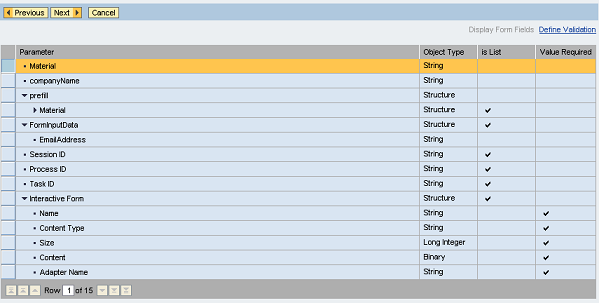
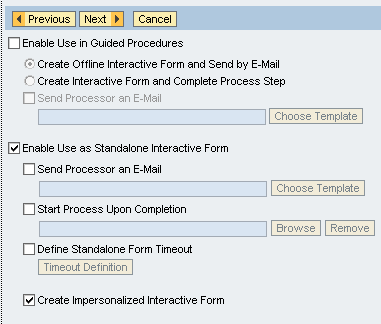
- Clicking next gives me an option to configure Interactive form. I clicked on “Enable Use as Standalone Interactive Form” check box and “Create Impersonalized Interactive Form” check box
- I clicked next to finish the process. After activating I could see the form under Guided Procedure-> Interactive forms -> Manage Impersonalized Forms. When I downloaded the form, it was prepopulated with backend values.

Note: Please check your ADS configuration before attempting this demo.
 Bluesky